Program configuration for Outlook Express 5 - 6
Make the following adjustments to use our news server:
1
Start Outlook Express as usual.
2
Start the news reader of Outlook Express with Set up a Newsgroups account.
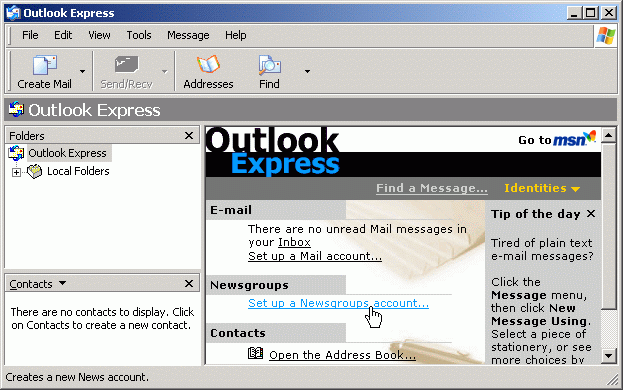
If our news server is the first you use with Outlook Express, please continue with the configuration as described at step #3.
If you have already configured another news server, Outlook Express now displays the news reader window:
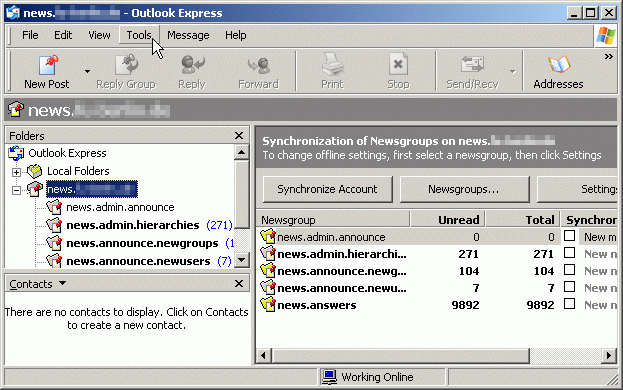
You can add another news server by selecting Tools / Accounts:
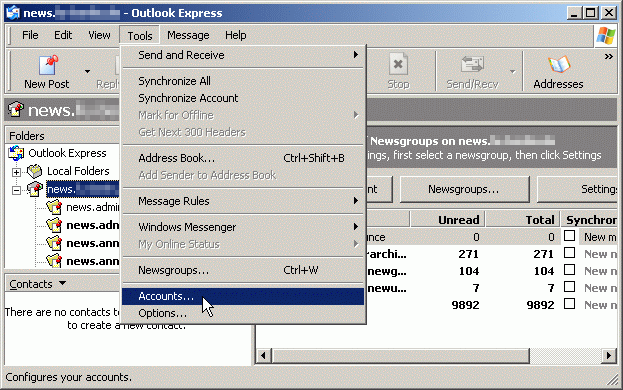
Click at the register card News and choose Add / News:
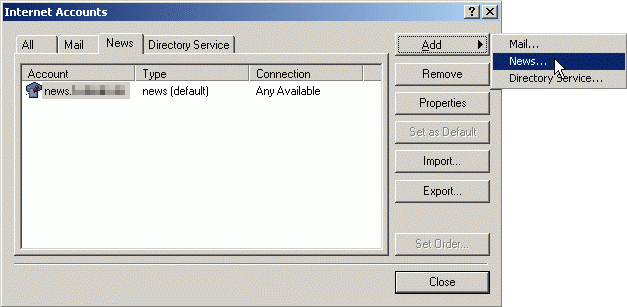
Now you need to enter the configuration data.
3
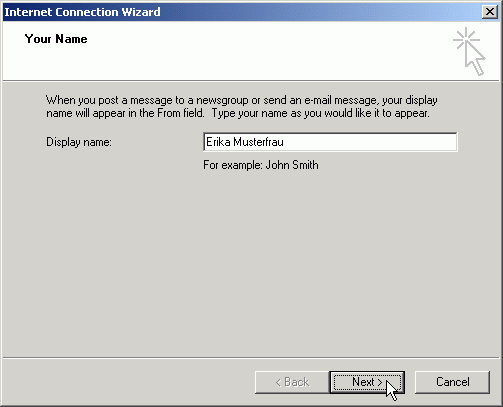
Please enter your real name in the field Display Name and click Next.
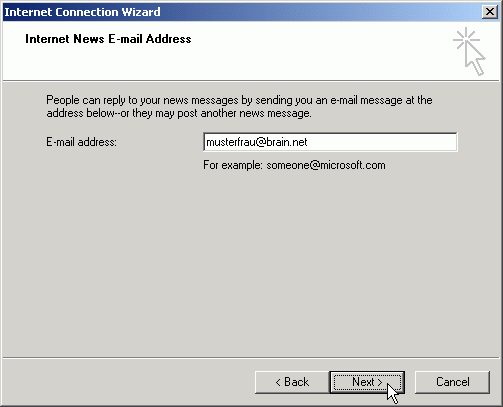
Please enter your correct e-mail address in the field E-mail address and click Next.
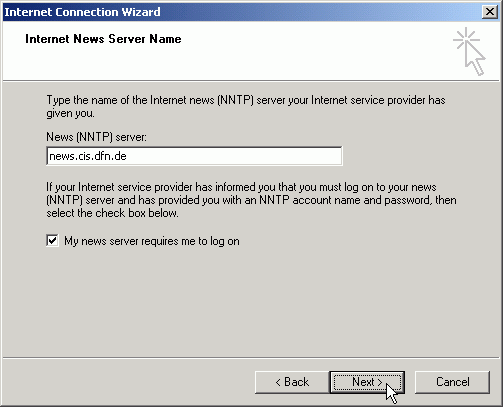
Enter the name of our news server: News.CIS.DFN.DE
Activate the check box left to My news server requires me to log on by clicking at it with your left mouse button. Click Next.
Please enter your username into the field Account name as well as your password into the field Password.
Storing your account information in the news reader's configuration is a potential security risk. If you are unsure, please refer to our FAQ at http://news.cis.dfn.de/faq.html#1.6.
It is not necessary to enter a password if your institution is a member of the institutional access scheme (Anwenderzulassung) and you are accessing the server from your institution's network.
"Log on using Secure Password Authentication (SPA)" must remain unchecked!
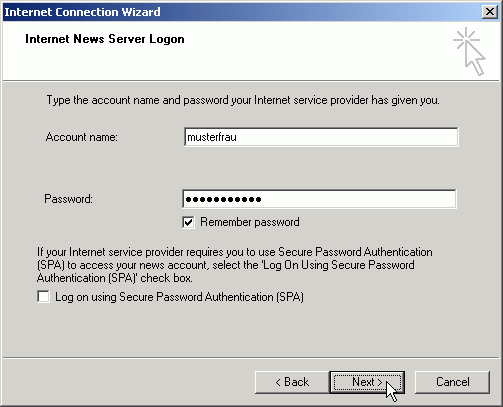
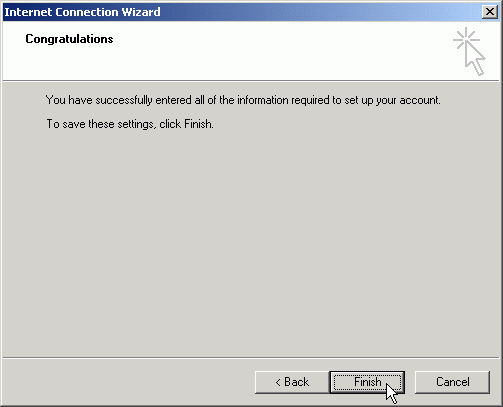
Click at Next and confirm the end of this configuration part with Finish.
4
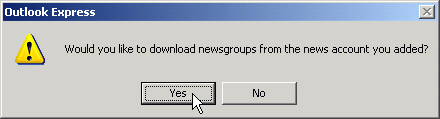
After adding the news server Outlook Express has to download the list of available newsgroups. Click Yes to start:
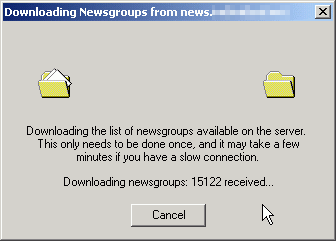
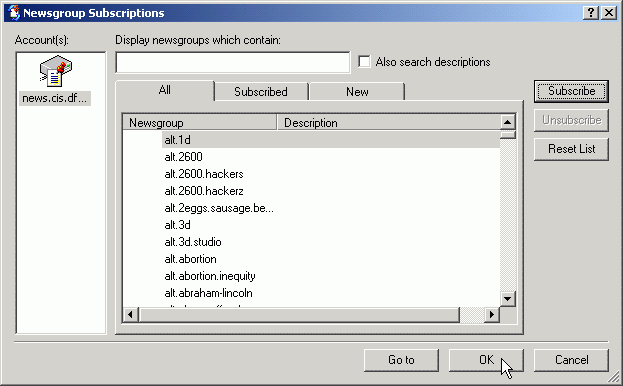
Afterwards you can select the newsgroups you are interested in.
5
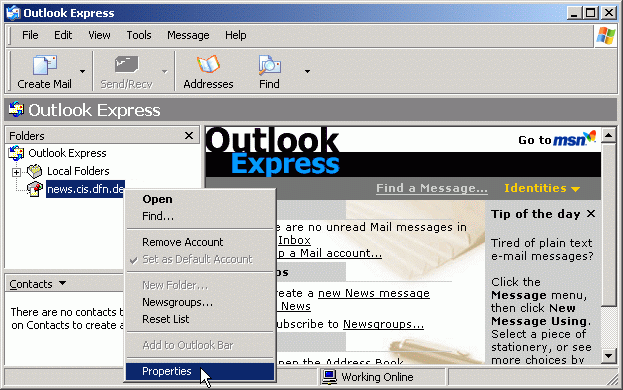
Please select the news server with the right mousebotton to optimize the news reader configuration. Click at the button Properties.
Select the register card Advanced and choose the maximum value for Server Timeouts. If you prefer both authentication and articles to be transferred over an encrypted connection, check "This server requires a secure connection (SSL)" and set "Port number" to 563; otherwise leave it unchanged at "119".
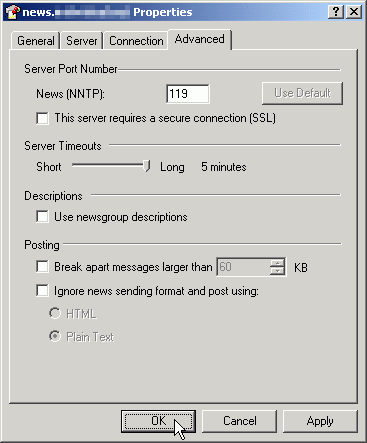
A click on Apply and then on OK finishes the configuration.
6
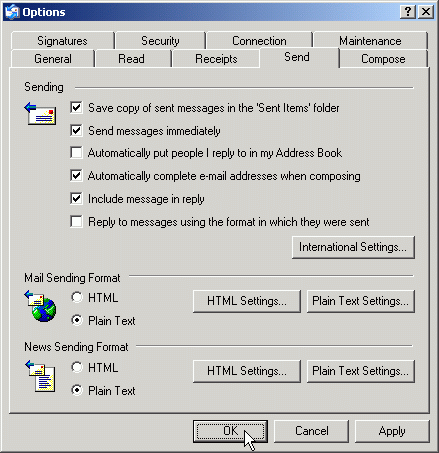
As your final step please make sure that the usage of HTML is not activated.
You can do that by selecting the command Tools / Options and clicking at the register card Send.
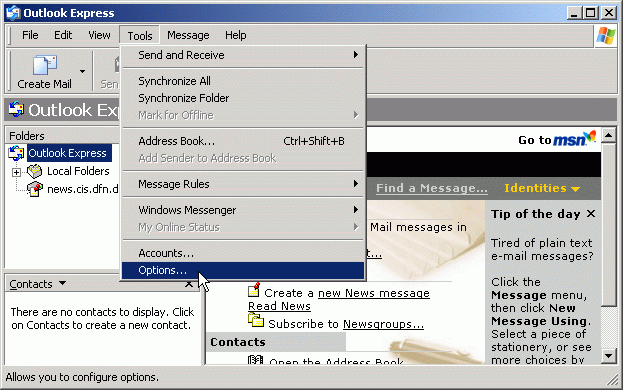
The buttons for HTML should be unchecked.